
Creating your account
In Obics, an organization is your workspace. All your integrations, scans, recommendations and settings belong to an organization, and your data is isolated from every other organization.
There are three ways to get into Obics. Pick the one that matches you.
Option 1: Sign up for the free tier
Section titled “Option 1: Sign up for the free tier”A free tier is available for Obics Cloud (not self-hosted).
From the sign-in page, choose “No account? Sign up for free”. The signup form asks for:
| Field | Notes |
|---|---|
| Work email | Must be a company email; free webmail domains are rejected. |
| Organization name | Becomes your organization ID. Letters, digits, hyphens and underscores only, no spaces. |
Click Create account. Obics sends a verification link to your email; you’ll see a “Check your email” screen. Click the link, then sign in normally.
On your first sign-in, Obics automatically creates your free organization behind the scenes and drops you on the Optimize Logs page. A Free badge appears in the profile menu at the top-right.
Your next step is to connect your data sources (see Integrations).
Option 2: Free Trial
Section titled “Option 2: Free Trial”We’re offering a free trial for organizations that want to try Obics on a bigger scale or to deploy on-prem / your cloud.
Fill-in your details and our sales team will contact you.
Option 3: You’re invited to a team
Section titled “Option 3: You’re invited to a team”If a teammate invites you, what happens depends on whether you already have an Obics account:
- No account yet: you receive an invitation email with a setup link. It opens the Onboarding screen (“Welcome to Obics!”), where you set your Display Name and a Password, then click Complete Setup. You land in the app, already a member of the organization that invited you.
- You already have an account: you’re added to the organization immediately; no email or setup needed. It simply appears in your organization switcher.
Switching between organizations
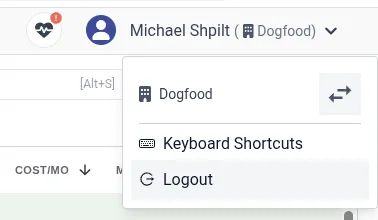
Section titled “Switching between organizations”If you belong to more than one organization, the top-right profile menu shows the
current one next to your name (for example, 🏢 Dogfood). A swap icon opens an
organization switcher listing every organization you belong to; the active one
is marked (current). Click another to switch. If you belong to just one, no
switcher appears.
Your organization’s plan is shown as a badge in the profile menu:
| Badge | Meaning |
|---|---|
| Free | 50 GB/month of logs + up to 10 metric insights, capped scope, choose-your-services. |
| Trial | Time-limited full access; some rows may be locked until you upgrade. |
| (no badge) | Paid organization, full access. |
Next: Connecting integrations.