
Settings
The Settings page is organized into tabs (switch with Ctrl+[ / Ctrl+]).
Here’s what each controls.
General
Section titled “General”Your personal profile (Display Name, Email, session info) and the LLM model Obics uses to generate recommendations and fixes (Claude Opus / Sonnet / Haiku, Kimi K2.5 on Bedrock, or a Custom model).
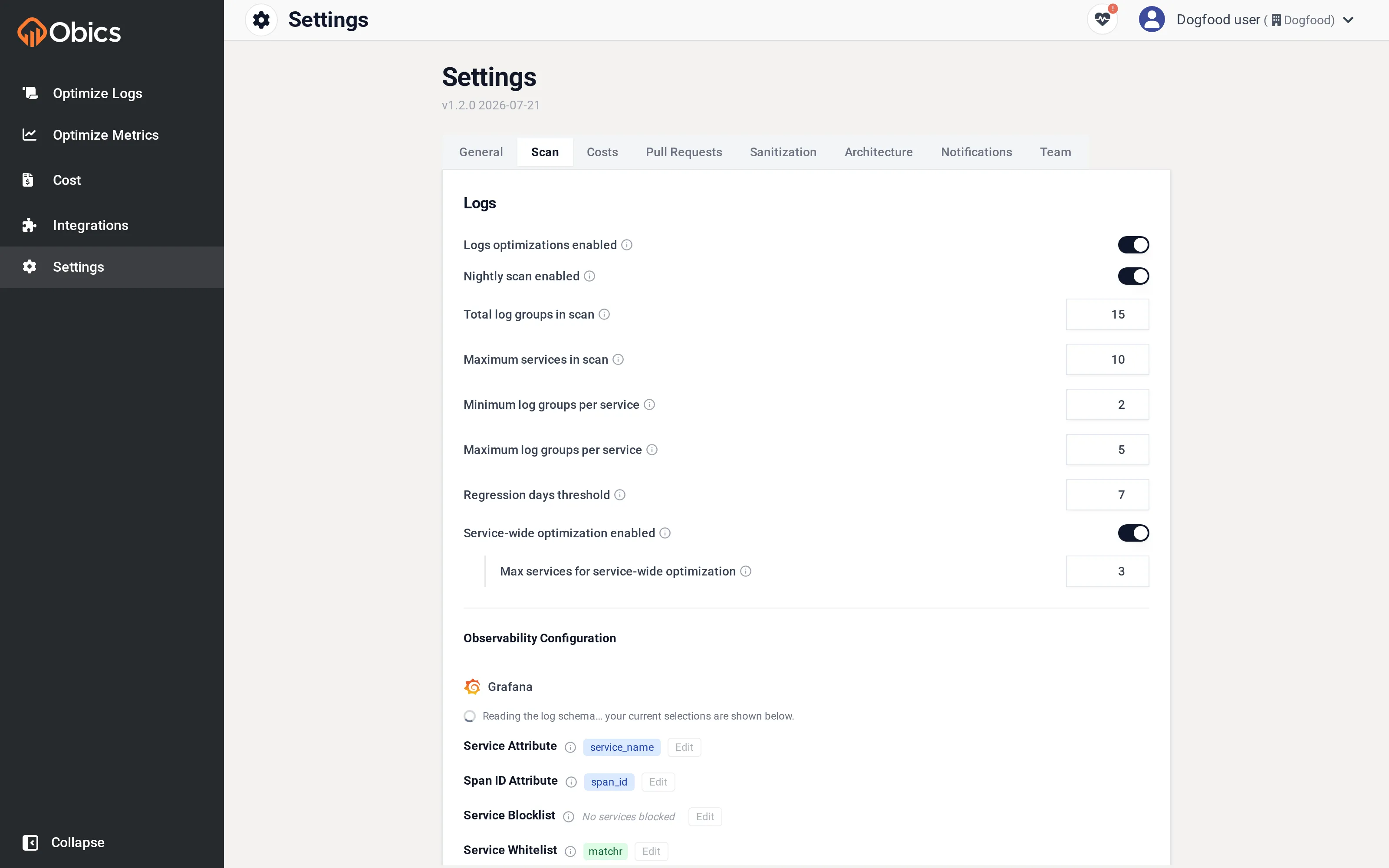
Controls what the nightly and on-demand scans cover:
- Nightly scan enabled: run a scan automatically every night.
- Logs optimizations enabled / Metrics optimizations enabled: turn each pipeline on or off.
- Service-wide optimization enabled: allow whole-service recommendations.
- Scope limits: Maximum services in scan, Min/Max log groups per service, Total log groups in scan, Max metrics in scan, and a Regression days threshold.
- Per-attribute exclusions: values to leave out of scans.
The pricing model Obics uses to turn volume and cardinality into dollars, per provider (Datadog / Coralogix), with an Auto-detect option. Editable prices include cost per GB of logs, ingest cost, cost per million log events, cost per indexed custom metric, free custom metrics per host, price per host, and retention tiers. Getting these right makes every cost and savings figure across Obics match your real bill.
Pull Requests
Section titled “Pull Requests”(Labelled “Merge Requests” on GitLab.) How Obics opens fixes:
- Required Reviewers, Follow up on open PRs and automatically fix failures, Email me when a PR is created, Create work item on PR (+ area/iteration).
- Customize branch naming with a template (placeholders like
{ID},{WID}), a Commit message prefix, and free-form PR Directives injected into every fix.
Sanitization
Section titled “Sanitization”Redaction rules applied to telemetry before it’s processed, each with an Original value, a Placeholder, and a position (start / end / anywhere). Use this to keep sensitive strings out of samples and prompts.
Architecture
Section titled “Architecture”Obics’s Detected Architecture of your stack (name, type, query, retention) plus a box for Additional Architecture Guidance you want it to consider.
Notifications
Section titled “Notifications”Split into Organization notifications (e.g. email members on log spikes or after each scan) and Your preferences, plus a per-user Muted services list.
Invite and manage members and their roles, covered in Managing your team.